
3D50 Firmware, Slicer & Documents
- Firmware Updates
- Documents and Manual
- Slicer Software Download
How To Update 3D50 Firmware
The upgrade to the latest Firmware follow these instructions:
Wi-Fi/Ethernet
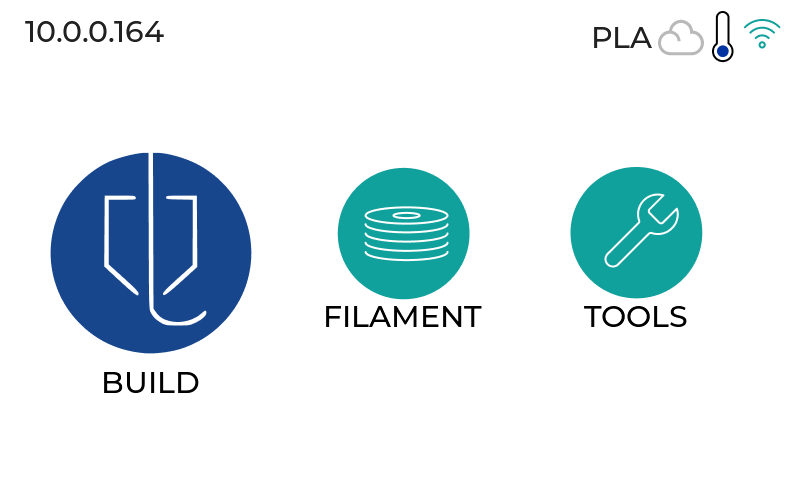
1. Ensure your 3D50 printer is connected to the internet.
2. On the home screen go to "TOOLS"
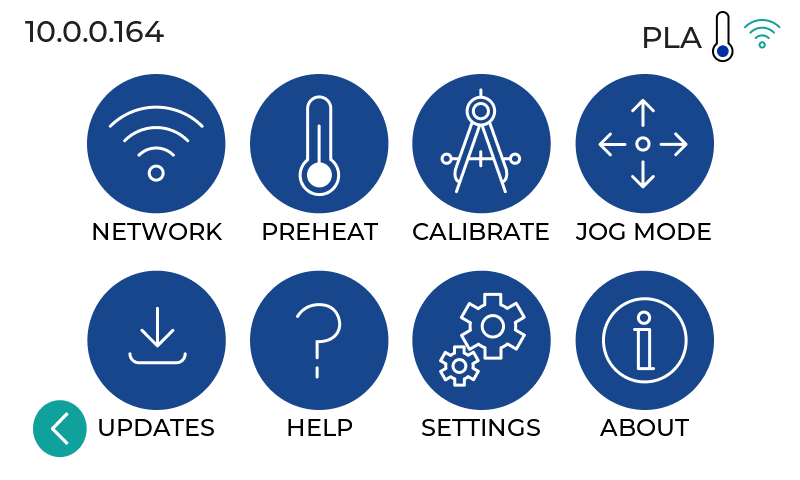
3. Click on "UPDATES"
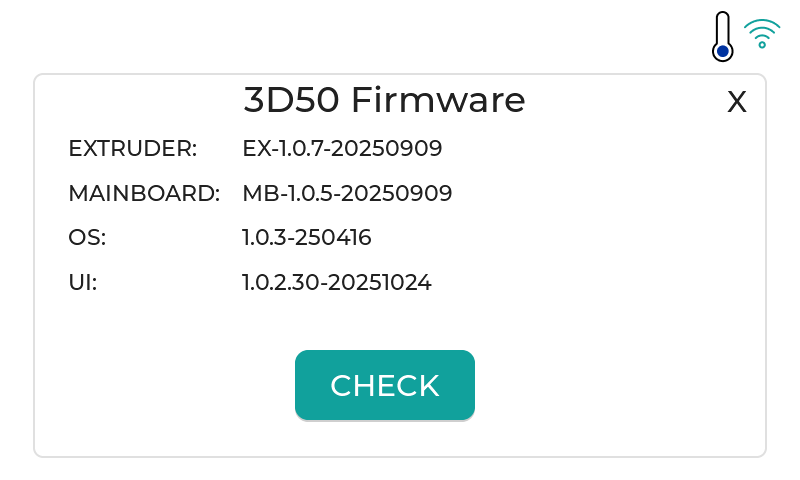
4. The 3D50 Firmware screen will show. Select "CHECK"
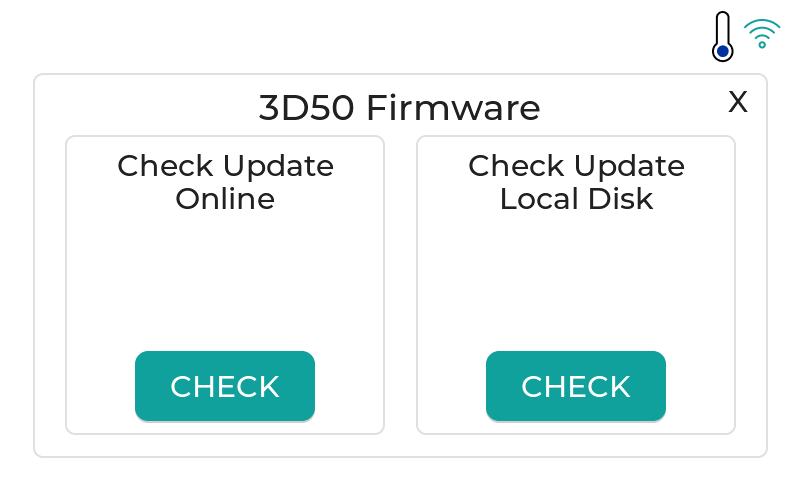
5. If new firmware is detected, choose between an over the air (Wi-Fi) or manual update (USB)
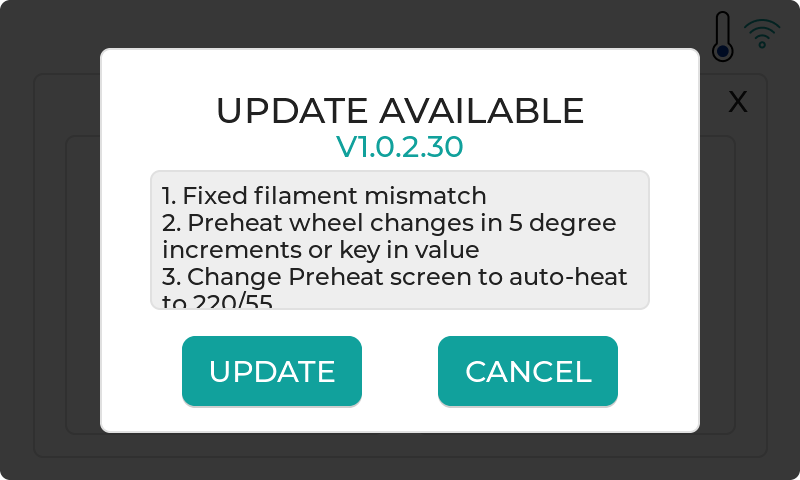
6. If an update is available you will get this screen. Select 'UPDATE' to begin. If you choose a Local Disk update, follow directions below.
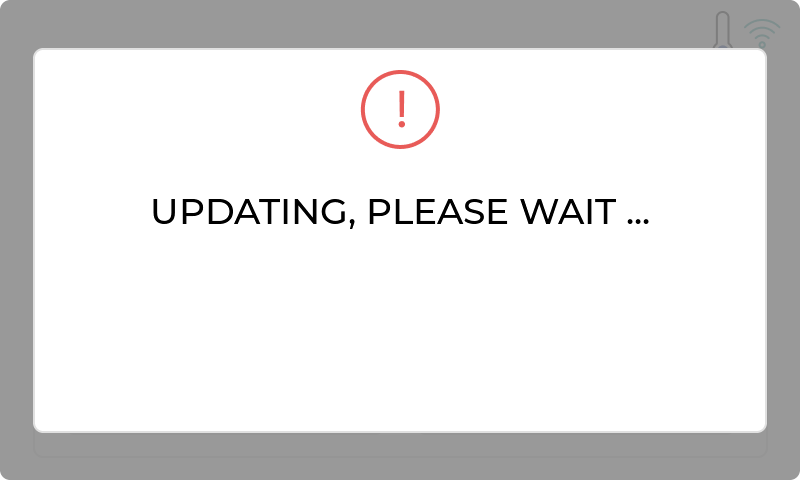
7. After the update has been installed your printer will automatically reboot.
Manual Update using a USB Flash Drive
1. If you are unable to connect the Dremel 3D50 to the internet, download the updated file to your computer.
2. Copy the file from your computer onto a USB flash drive. Make sure the USB flash drive is formatted in the FAT32 format, not NTFS or exFAT and DOES NOT have a previous firmware update on it.
3. Plug the USB flash drive into your Dremel 3D50 printer (either of the 3 USB ports will work)
4. Similar to the instructions above, go to the home screen select TOOLS > UPDATES > CHECK > CHECK LOCAL DISK
5. Press "ACCEPT" to install. Once the installation is complete.
6. Your Dremel 3D50 will automatically reboot after the installation is complete.
For release notes, please click here.
Click Here To Download the latest Firmware version
3D50 User Manual (PDF)
Warranty (PDF)
3D Printer Recycling
3PI Tech is committed to environmental protection. We encourage you to responsibly
recycle your Dremel 3D Printer when it reaches end of life. Recycling saves resources
and creates jobs.
Click here to find out how to recycle your Dremel 3D printer in US.